

Description
Download AutoScreenRecorder – Free Screen Recording Software for Windows & Mac
AutoScreenRecorder is a powerful yet lightweight screen recording tool designed for users who need to capture high-quality video from their desktop or laptop. Whether you're creating tutorials, recording gameplay, documenting software demos, or sharing online presentations, AutoScreenRecorder delivers crisp, clear recordings with minimal effort. The software records everything on your screen—mouse movements, on-screen text, audio from your system, and even webcam feeds—making it ideal for educators, content creators, and remote workers. With support for AVI files and lossless compression, your recordings retain original quality without unnecessary file bloat. Plus, built-in editing tools let you trim clips and extract images instantly, streamlining your workflow. The intuitive interface and customizable hotkeys ensure fast access, so you can start recording in seconds. Available as a free download for Windows and Mac, AutoScreenRecorder is a secure, reliable, and user-friendly solution for all your screen capture needs.
Key Features of AutoScreenRecorder
AutoScreenRecorder stands out in the crowded field of screen recording software thanks to its robust feature set and focus on usability. One of its most praised aspects is the ability to record your entire screen, specific windows, or custom regions with precision. This flexibility allows users to capture only what’s relevant—whether it’s a full gameplay session or a focused tutorial on a single application. The software supports both system audio and microphone input, so you can narrate your recordings with clear voiceovers. A standout feature is the lossless AVI compression, which ensures that every frame of your video remains sharp and detailed, even after long recording sessions.
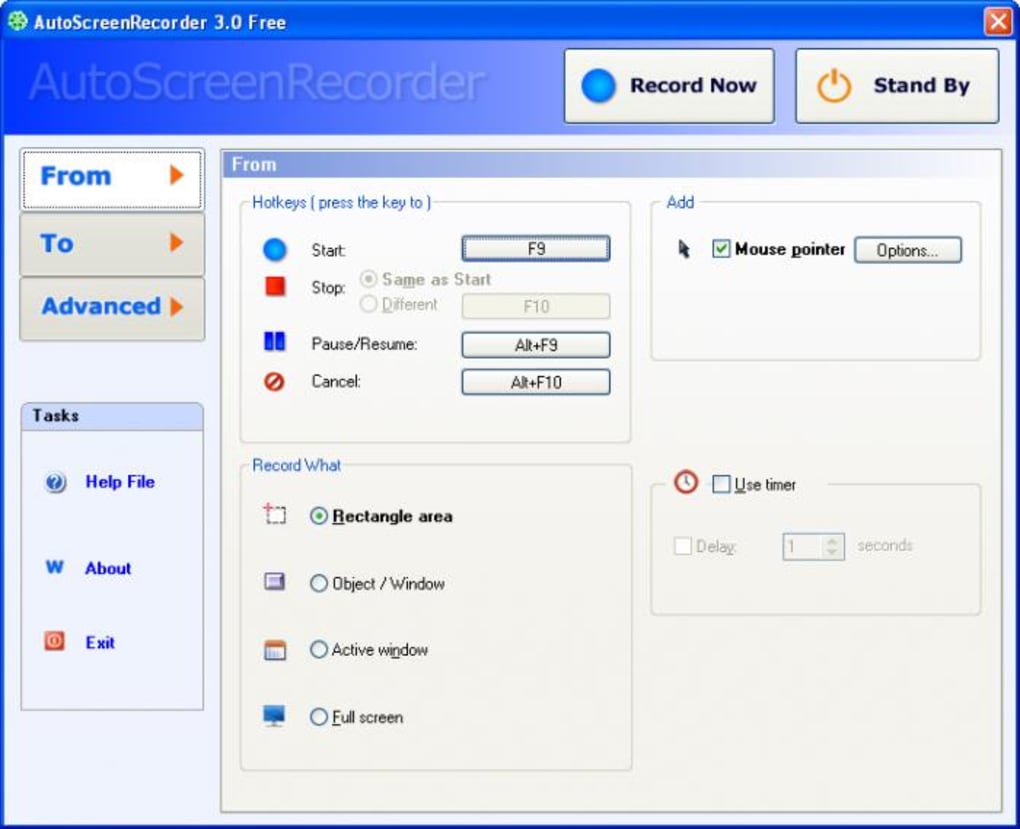
Another major advantage is the built-in video editor. Unlike many screen recorders that only capture footage, AutoScreenRecorder lets you trim unwanted segments, split clips, and export still images directly from your recordings—all without needing a separate editing tool. This is especially helpful for content creators who want to quickly publish polished videos. The hotkey functionality is also a game-changer: assign custom shortcuts to start, pause, and stop recording, allowing for seamless workflow integration. You can even set up automatic file naming and save locations to keep your media organized. With support for multiple display setups and webcam overlay options, it’s perfect for hybrid presentations or live streaming setups. The software is lightweight and doesn’t consume excessive system resources, ensuring smooth performance even during intensive tasks.
Security is another priority. AutoScreenRecorder does not require internet access to function and stores your recordings locally, giving you full control over your data. There are no hidden tracking scripts or telemetry, making it a trusted choice for privacy-conscious users. The free version includes all essential features, with no watermarks or time limits—unlike many competitors that restrict functionality in their free tiers. Whether you're a student, teacher, developer, or digital marketer, AutoScreenRecorder offers a complete solution for capturing and sharing screen content efficiently and securely.
How to Install and Use AutoScreenRecorder
Getting started with AutoScreenRecorder is straightforward and takes just a few minutes. First, visit the official website and download the installer for your operating system—either Windows or Mac. The installation process is quick and guided, requiring minimal input. Once installed, launch the app and you’ll be greeted with a clean, intuitive interface that displays recording options, audio settings, and hotkey configurations.
To begin recording, select your preferred recording mode: full screen, window-specific, or custom region. You can also enable microphone or system audio input, and if needed, overlay your webcam feed for a more personal touch. Click the “Record” button or use your assigned hotkey (default is Ctrl+Shift+R) to start. The recording will begin immediately, with a small overlay displaying the recording status. When you’re done, press the hotkey again or click the stop button to end the session.
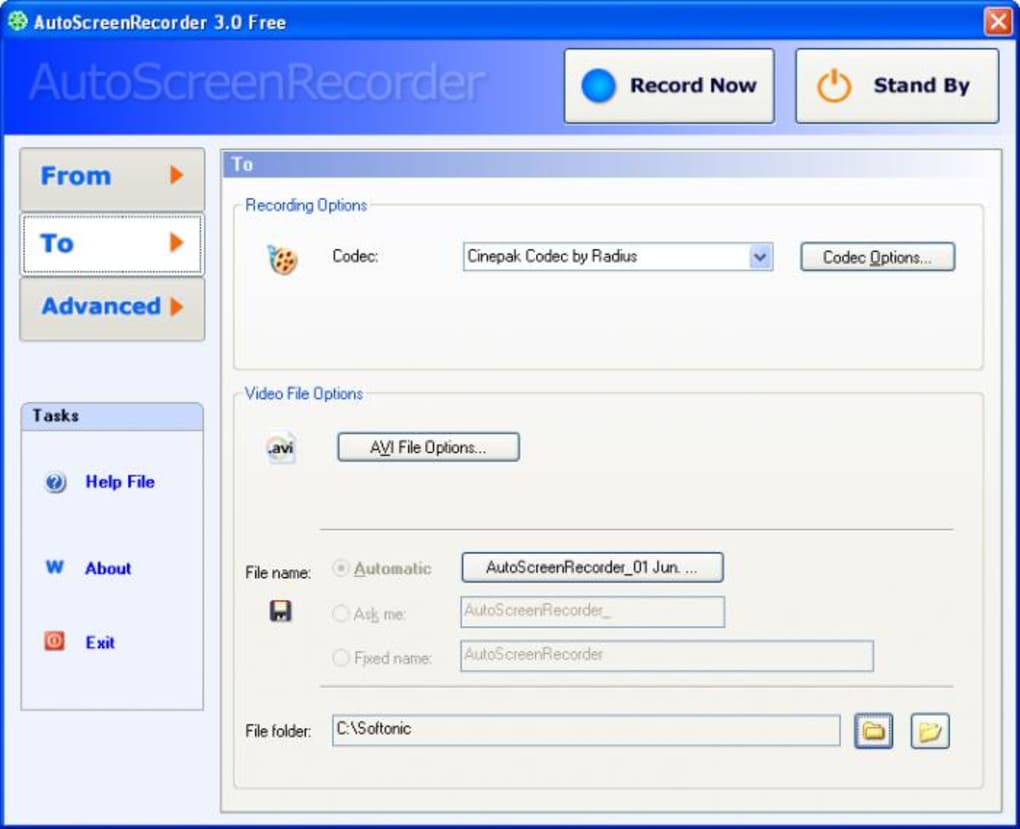
After recording, AutoScreenRecorder automatically opens the built-in editor. Here, you can trim the beginning and end of your video, split it into segments, or extract high-resolution still images. You can also rename the file and choose a save location before finalizing. The software supports batch processing, so you can record multiple clips in one session and manage them all in a single workspace. For advanced users, the settings menu allows you to adjust video quality, frame rate, and output format (AVI only in the free version). Regular updates are released to improve stability, fix bugs, and add minor enhancements, ensuring long-term reliability.
Compatibility and System Requirements
AutoScreenRecorder is compatible with a wide range of devices and operating systems. It runs smoothly on Windows 7 and later versions, including Windows 10 and Windows 11, offering full support for both 32-bit and 64-bit architectures. For Mac users, the software is available for macOS 10.13 (High Sierra) and above, including the latest macOS Sonoma. This broad compatibility ensures that both older and newer machines can benefit from its features.
System requirements are modest, making it accessible even on devices with limited resources. For Windows, you’ll need at least 1 GB of RAM, 500 MB of free disk space, and a graphics card that supports DirectX 9.0 or later. On Mac, the requirements are similarly light: 2 GB of RAM, 500 MB of free space, and a compatible Intel or Apple Silicon processor. The app does not require administrator privileges to install or run, which is ideal for corporate or school environments where software restrictions are common.
AutoScreenRecorder also works seamlessly with multi-monitor setups, allowing you to record from a single display or all connected screens simultaneously. It supports various input sources, including HDMI, USB webcams, and external audio devices. The software is designed to be non-intrusive—once recording starts, it runs in the background without slowing down other applications. Whether you’re using a budget laptop or a high-end workstation, AutoScreenRecorder delivers consistent performance across all platforms.
Pros and Cons of AutoScreenRecorder
- Pros:
- Free to download and use with no time limits or watermarks
- Records in high-quality AVI with lossless compression
- Intuitive interface with easy-to-use hotkeys
- Includes built-in video editor for trimming and image extraction
- Supports system audio, microphone, and webcam overlay
- Lightweight and low system resource usage
- Secure—no internet access or data tracking required
- Compatible with Windows and Mac, including Apple Silicon
- Cons:
- Only supports AVI output format (no MP4 or MOV in free version)
- Limited export options compared to premium tools
- No cloud storage or sharing integration
- Basic editing features—advanced users may want more tools
- Occasional UI lag on very old hardware
Frequently Asked Questions (FAQ)
- Is AutoScreenRecorder free to download and use?
Yes, AutoScreenRecorder is completely free to download and use. There are no hidden costs, subscription fees, or time-limited trials. The free version includes all core recording and editing features without watermarks or restrictions.
- Can I record my voice along with the screen?
Absolutely. AutoScreenRecorder allows you to record both system audio (like game sounds or video playback) and microphone input (your voice narration). You can enable both simultaneously for professional-quality tutorials or presentations.
- Does AutoScreenRecorder support Mac and Windows?
Yes, the software is available for both Windows (7 and later) and Mac (macOS 10.13 and above). It runs natively on Apple Silicon Macs, ensuring optimal performance and battery efficiency.
- What file format does AutoScreenRecorder use?
Recordings are saved as AVI files with lossless compression. While this ensures maximum video quality, it results in larger file sizes. Note that the free version does not support MP4 or MOV formats.
- Can I edit my recordings after capturing them?
Yes, AutoScreenRecorder includes a simple built-in editor. You can trim clips, split videos, and extract high-quality still images directly from your recordings without needing third-party software.
- How do I start and stop recording?
You can start and stop recording with a single click or use customizable hotkeys (e.g., Ctrl+Shift+R). This makes it easy to begin recording instantly, even during live demos or gaming sessions.
Final Verdict: Is AutoScreenRecorder Worth It?
If you’re looking for a reliable, free screen recording tool that delivers high-quality results without the bloat, AutoScreenRecorder is an excellent choice. Its combination of lossless AVI recording, built-in editing, and hotkey support makes it ideal for educators, content creators, and remote professionals. While it lacks MP4 export and advanced features found in paid software, the free version offers more than enough for most users. The software is secure, lightweight, and compatible with both Windows and Mac—making it a versatile tool for any digital workflow.
For anyone who needs to record their screen quickly and efficiently, AutoScreenRecorder provides a seamless experience with no compromises. Whether you’re creating a tutorial, documenting a bug, or sharing a presentation, this tool gets the job done right. Download AutoScreenRecorder today and take full control of your screen capture needs—free, secure, and with no strings attached.
Download AutoScreenRecorder now and start recording your screen with confidence.
Guides & Tutorials for AutoScreenRecorder
How to install AutoScreenRecorder
- Click the Preview / Download button above.
- Once redirected, accept the terms and click Install.
- Wait for the AutoScreenRecorder download to finish on your device.
How to use AutoScreenRecorder
This software is primarily used for its core features described above. Open the app after installation to explore its capabilities.
User Reviews for AutoScreenRecorder 0
No reviews found





